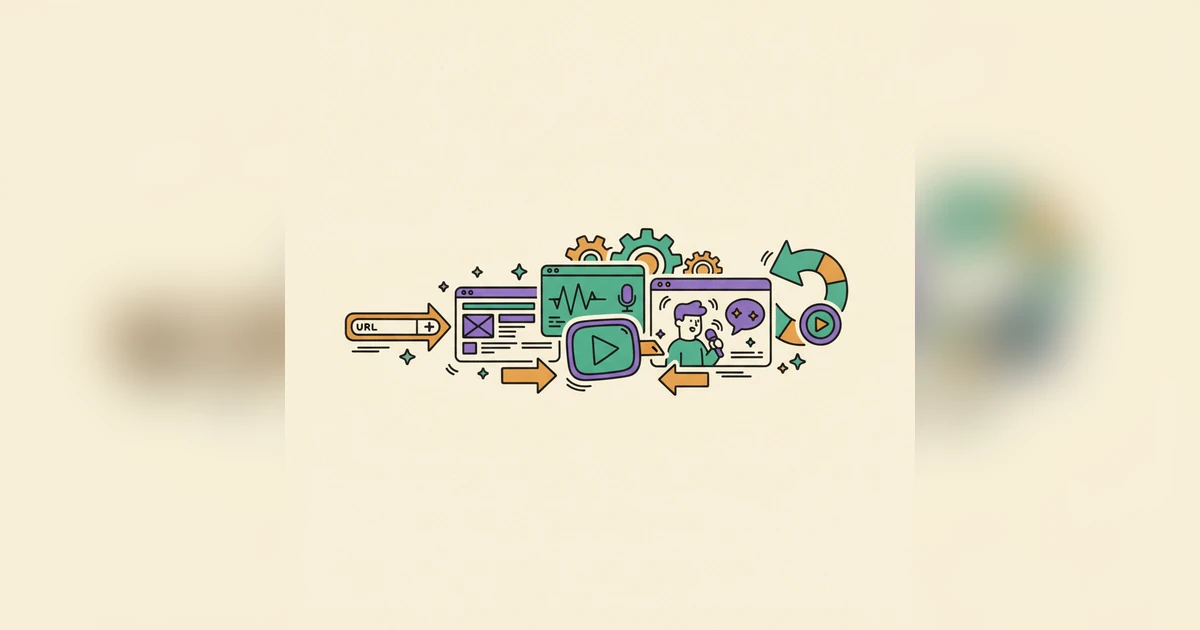
Most demo tools begin with "show us what to record." Woxgen Auto-Record begins one step earlier — before you've recorded anything at all. You give it a URL; it hands back a finished, narrated video. Here's exactly what happens in between, step by step.
Step 0 — You hand over a URL (and, once, a login)
That's the entire input. A link to your app, and credentials if it lives behind a login wall. No screen recording, no script, no editing timeline. From here, you're out of the loop until it's time to review.
Step 1 — An AI agent opens your app and signs in
Auto-Record runs a computer-use AI agent on top of a real browser (Playwright under the hood). It loads your URL and signs in off-camera — the login happens before the recording starts, so your credentials never appear on screen and aren't stored once the run is done.
Step 2 — It navigates like a real user
This is the part other tools leave to you. The agent moves through your product the way a person would: opens the dashboard, clicks into a feature, scrolls a list, opens settings. It isn't following a brittle script of coordinates — it reads the interface and decides where to go, pausing naturally on each screen so there's something worth narrating.
Step 3 — It records the session
The whole run is captured as a clean source video — your product, doing real things, with no cursor jitter or half-loaded frames left in the important moments.
Step 4 — Woxgen reads the recording, frame by frame
Once the raw capture exists, a vision model walks the footage and identifies what each screen actually is: a home feed, a detail page, a settings panel, a checkout. It treats the sample data on screen — names, titles, rows — as illustrative, so the narration talks about features, not the placeholder content.
Step 5 — It writes the narration — one clear beat per screen
The script is built scene by scene, not frame by frame. Each distinct screen gets exactly one line about what it lets you do and why it matters — so an auto-rotating carousel or a screen that lingers doesn't turn into thirty repetitive sentences. You get a guided tour, in the real on-screen order, covering every screen once.
Step 6 — A natural AI voice-over
The script is spoken by a natural AI voice, in your chosen language. It's timed to the footage, not read over dead air.
Step 7 — Smart zooms, synced captions, and a clean cut
Woxgen zooms toward the action, syncs captions to the voice, trims the dead air out of long static holds, and makes sure the video pauses on a fully-loaded screen rather than a loading spinner or a mid-transition blur. The result is paced like something a human editor would cut — without the human editor.
Step 8 — An HD MP4, ready to ship
Out comes a polished, watermark-free HD video you can drop on a landing page, send to a prospect, or embed in onboarding.
Why autonomous beats assisted
Assisted recorders are excellent at making the recording you do look good. Auto-Record removes the "you do it" step entirely. When you're shipping a demo for every feature and every plan, that's the difference between a task you keep putting off and a link you paste before lunch.
Where a human still helps
Auto-Record gets you a finished demo without lifting a finger — but it's not a black box. Every project opens in the editor, so you can tweak a line of narration, swap the voice, adjust a zoom, or re-cut a scene before you ship. Autonomous by default; editable when you want it.
Paste a URL, get a narrated demo. See Auto-Record →
Related reading:
Frequently asked questions
What does Woxgen Auto-Record need to make a demo?
Just your app's URL, plus login credentials if it's behind a login wall. No screen recording, script, or editing required from you.
How does the AI know what to demonstrate?
A computer-use AI agent navigates your product like a real user, and a vision model then reads the recording to identify each screen and feature, so the narration describes capabilities rather than sample content.
Will the demo narrate every screen or repeat itself?
The script is built scene by scene — one clear beat per distinct screen, covering each once in the real on-screen order, so it never loops on a carousel or a static page.
Can I edit the result?
Yes. Every Auto-Record project opens in the Woxgen editor where you can rewrite narration, change the voice, adjust zooms and captions, and re-cut scenes before exporting.